
Install your travel eSIM
Choose your phone for step-by-step installation, then connect when you arrive.
For iOS. The reference shows iOS 26; older versions may say Mobile Data or Add Cellular Plan.
Open cellular settings
In Settings, open Cellular or Mobile Data, then choose Add eSIM.
Scan your order’s QR code
Choose Use QR Code (under Other Options on some versions). Scan the QR code displayed on another device.
Finish adding the plan
Follow the prompts to continue and add the eSIM. Give the line a label such as “Travel”. Keep your usual line as the default for calls.
Choose when to connect
Check the validity rule in your order. For first-connection plans, leave the travel line off until arrival. Then select it for cellular data and enable its Data Roaming.
Screen reference
Reference screens are in English. Names and layout vary by phone, region and software version. Open an image to zoom in.
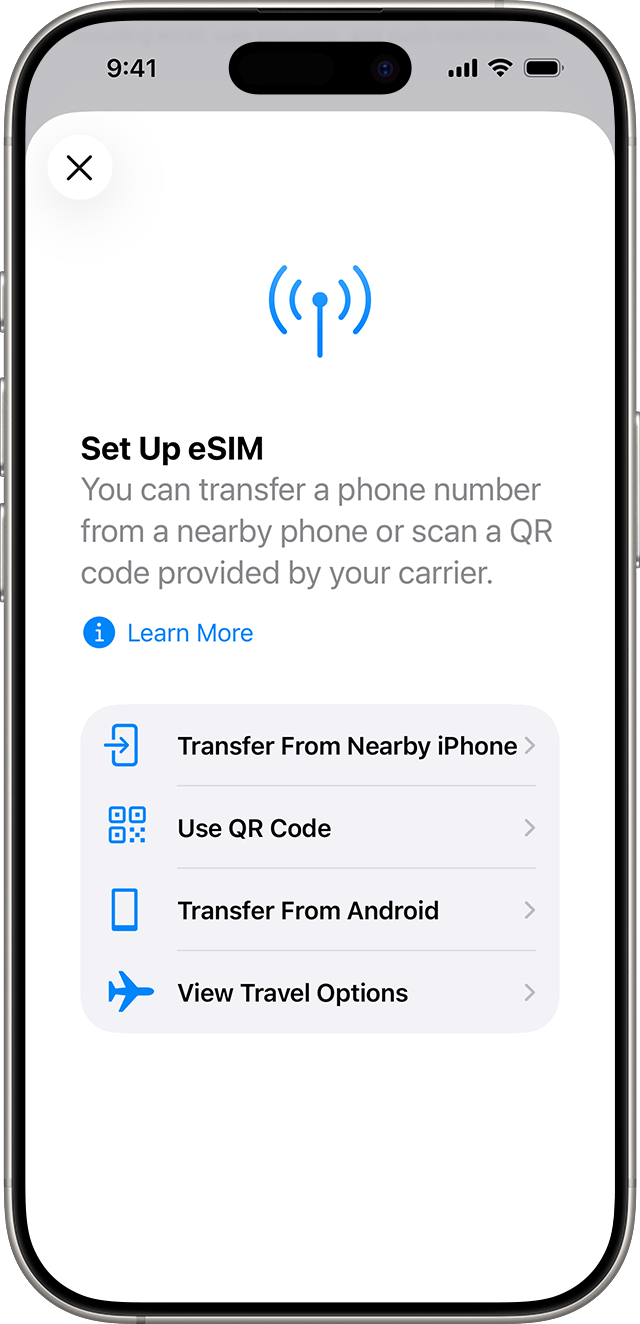
Source: Apple
If you cannot scan the QR code
Find the activation code in your order. On the scan screen, choose manual entry. For a code in the form LPA:1$address$code, enter address as the SM-DP+ address and code as the activation code on iPhone. Android may ask for the full LPA string. Only enter a confirmation code if one was supplied.
When you arrive
Select the travel eSIM for mobile data and enable data roaming on that line. Turn off data roaming on your home SIM and automatic mobile-data switching. Keep your usual line for calls if needed; your home carrier’s charges still apply. If data does not work, check the APN in your order and enter it only if required, then try airplane mode or restart. Do not delete the eSIM to troubleshoot.
Where to check APN
iPhone: Settings → Cellular → travel eSIM → Cellular Data Network (if your carrier allows editing). Pixel / Android: Settings → Network & internet → SIMs → travel eSIM → Access Point Names. Samsung: Settings → Connections → Mobile networks → Access Point Names. Use the exact value in your order; do not guess an APN.